

Check barcode tickets with BarcodeChecker

Scan and check barcode tickets for your events.
- No ticket fees
- Import barcodes from Excel or print barcode tickets with TicketCreator
- Read barcodes or QR codes of various formats
- Scan with Android app, iOS app, or PC with barcode scanner
- Requires Windows PC as server or for scanning
|
Download trial version Secure from Microsoft Store |
Buy BarcodeChecker Only €299,- (Your currency) No ticket fees! |
Scan and check barcode tickets with BarcodeChecker
Overview
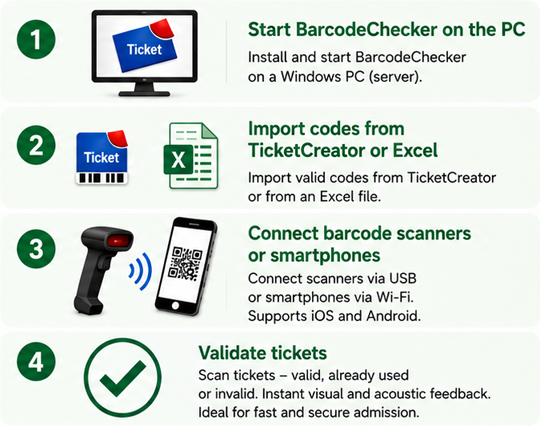
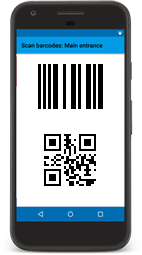
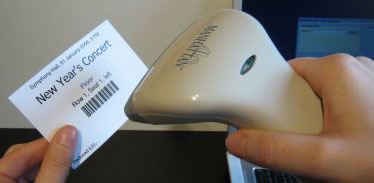
BarcodeChecker is a software to scan and check barcode tickets for your event. Scan the tickets with smartphones (Android or iPhone) or simple PCs/laptops with barcode scanners or webcams.
The admission tickets are scanned at the door and their barcodes are checked for validity. Each barcode can only be used once to enter and copied tickets are rejected.
For registered TicketCreator tickets or imported barcodes from an Excel file, the name of the guest can be displayed when scanning (welcome function). Moreover, the attendance is logged and you can show or export an attendance list at any time.
Videos: Scan barcode tickets with  smartphones,
a single PC, or
multiple PCs.
smartphones,
a single PC, or
multiple PCs.
Option 1: Check TicketCreator tickets with barcodes
 |
Barcode tickets that have been printed with TicketCreator can be easily checked with the BarcodeChecker software. The BarcodeChecker is included in the TicketCreator Barcode-Edition, i.e. you can use the BarcodeChecker software for free. |
Show step-by-step instructions.
1.) Start the TicketCreator software and create the location for the event. You can skip this point for events that have only tickets with serial numbers.
2.) Create an event in the location and activate the option 'Barcodes'.
3.) Print tickets.
4.) Use the menu 'Events - Save BarcodeChecker file' to create the BarcodeChecker file of the event.
A) If you use a single PC to scan:
5.) Copy the BarcodeChecker file to the PC that is used to check tickets at the entrance.
6.) Start the BarcodeChecker software on the PC, click 'Scan', and open the BarcodeChecker file of the event.
7.) Now you can control the barcodes on the tickets.
B) If you use multiple PCs to scan:
5.) Create a network.
6.) Copy the BarcodeChecker file to the PC that is used as server and to all PCs that are used to check tickets at the entrance.
7.) Start the BarcodeChecker software on the server PC, click 'Start server', and open the BarcodeChecker file of the event.
8.) Start the BarcodeChecker software on all scanner PCs, click 'Scan', open the BarcodeChecker file, and connect the PCs to the server.
9.) Now you can control the barcodes on the tickets.
C) If you use smartphones to scan:
5.) Copy the BarcodeChecker file to the PC that is used as server.
6.) Start the BarcodeChecker software on the server PC, click 'Start server', and open the BarcodeChecker file of the event.
7.) Start the BarcodeChecker app on the phones and connect them to the server.
8.) Now you can control the barcodes on the tickets.
Option 2: Scan other barcodes (e.g. from Excel file or guest list)
 |
You can use BarcodeChecker also to read and check other barcodes with up to 300 digits or letters. Just import the barcodes as an Excel file, CSV file, or text file. This requires the TicketCreator Barcode Edition or a license for the BarcodeChecker. Each event can have up to 30.000 barcodes (more on request). If you want to print barcodes yourself (e.g. on invitations or name tags) you can create barcodes with BarcodeChecker, paste them into your Excel file, and use Microsoft Word to print or e-mail them as PDFs. |
Show step-by-step instructions.
1.) Create an Excel file with barcodes, which can also contain names and ticket types. The names are shown when the ticket is scanned and the ticket types can be used to restrict the access (e.g. accept only ticket type 'VIP' at door 1).
If you have an Excel file without barcodes (e.g. a guest list) you can create unique barcodes (use menu 'Extras', 'Create barcode list') and paste them into your Excel file. Then use the mail merge feature of Microsoft Word to print the barcodes.
2.) Save the barcodes as Excel file, CSV file (Comma delimited, *.csv, e.g. from Excel) or text file (Tab delimited, *.txt). You can skip this point if you have serial numbers (e.g. 1-1000).
Example 1: List of barcodes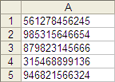 |
Example 2: List of barcodes, ticket types, names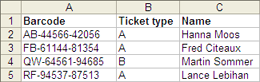 |
A) If you use a single PC to scan:
2.) Start the BarcodeChecker software on the PC that is used to scan and click 'Scan'.
3.) Open the Excel file, CSV file, or text file or enter the serial numbers. Save the BarcodeChecker file for this event.
4.) Open the BarcodeChecker file.
5.) Now you can control the barcodes.
B) If you use multiple PCs to scan:
2.) Create a network.
3.) Start the BarcodeChecker software on the PC that is used as server and click 'Start server'.
4.) Open the Excel file, CSV file, or text file or enter the serial numbers. Save the BarcodeChecker file for this event.
5.) Open the BarcodeChecker file and start the server.
6.) Copy the BarcodeChecker file to all PCs, which are used to check barcodes at the entrance.
7.) Start the BarcodeChecker software on all scanner PCs, click 'Scan', open the BarcodeChecker file, and connect the PCs to the server.
7.) Now you can control the barcodes.
C) If you use smartphones to scan:
2.) Start the BarcodeChecker software on the PC that is used as server and click 'Start server'.
3.) Open the Excel file, CSV file, or text file or enter the serial numbers. Save the BarcodeChecker file for this event.
4.) Open the BarcodeChecker file and start the server.
5.) Start the BarcodeChecker app on the phones, and connect them to the server.
6.) Now you can control the barcodes or QR codes.
Scan with app for Android smartphones, iPhones or iPads (+PC)
 You can use Android phones
or iPhones/iPads to scan tickets with barcodes or QR codes.
You can use Android phones
or iPhones/iPads to scan tickets with barcodes or QR codes.
Install the free BarcodeChecker app and connect up to 20 phones to a PC that runs the BarcodeChecker software as server. An internet connection is not required. More...
Scan with barcode scanners and PCs
Connect the scanner to a simple PC, laptop or netbook that runs Windows 10 or Windows 11. You can scan barcodes with up to 300 characters in all formats that can be read by your scanner.
 Barcode scanners with cable
Simple barcode scanners for linear barcodes are available starting at €
50,-/ $ 60,-/ £ 45,-.
Barcode scanner for QR codes are more expensive.
 Wireless barcode scanners
You can also use a wireless
Bluetooth barcode scanner.
Scan
with single scanner
If you use only one scanner just plug it into your PC and start the BarcodeChecker
software.
Scan
with single PC and up to 4 scanners (without Wi-Fi)
If you have a single entrance but want to use multiple scanners you can connect up to 4 scanners to 1 PC,
e.g. wireless Bluetooth scanners. The results for the scanners are shown side-by-side on the screen. More...
Scan
with up to 20 PCs with one scanner each (with Wi-Fi)
If you have multiple entrances or want to use multiple PCs you can create a LAN or Wi-Fi network
and connect one scanner to each PC. An internet connection is not required.
More...
Connection between phones/scanners and server PC
You have three options to connect scanner PCs to the server PC:
Option 1: Connect scanners directly to the router of the server (recommended):
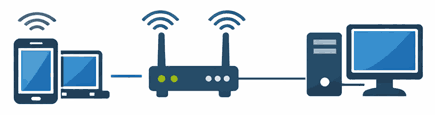
1.) Connect the server PC to a private (Wi-Fi) router and create a local, private network. An internet connection is not required.
2.) Connect all scanners to the (Wi-Fi) router of the server PC.
Option 2: Connect scanners via VPN with the server (easy alternative, if private network not possible):

1.) Install on all your smartphones and PCs a VPN (virtual private network), e.g. Tailscale (free option available).
2.) Start on all smartphones and PCs the VPN and connect all scanners via VPN to the server PC. A connection via a public router or the internet is possible.
Option 3: Connect scanners over the internet to the server (not recommended, only for experts):
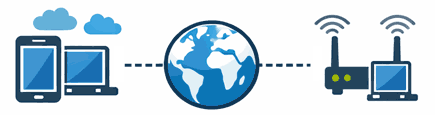
1.) Connect the server PC to a private router. The server PC cannot be connected to a public router.
2.) Create a port forwarding on your router and forward the selected port (default: port 7610) to the network IP that is shown in BarcodeChecker. Without port forwarding, the server cannot be reached via the internet!
3.) Connect the scanners via the internet to the server PC.
Register participants and log attendance
If you create a BarcodeChecker file, in which each barcode is assigned to a name, you can also log the attendance of your guest.
For TicketCreator tickets: Use TicketCreator to print tickets or name tags with barcodes. Assign a name to each ticket by first reserving and the printing a ticket, entering the name when printing, or registering a printed ticket to a name.
For other barcodes: Import the participants/guest list as Excel file (with barcodes and names). Use for example Microsoft Word to print the barcodes on the name tags or invitations. Instruction.
If you have a list of name without barcodes: Start BarcodeChecker and create a barcode list (use menu 'Extras', 'Create barcodes'), show it in Excel, and paste it into your name list. This way every name will have a barcode.
If you have a list of name with barcodes: Use barcodes with up to 200 digits or letters. These can then be read with the BarcodeChecker software.
Print the names and barcodes, e.g. in Word using the mail merge assistant.
Register attendance of participants:
- Scan the barcodes at the entrance with BarcodeChecker
- The name can be displayed when scanning (reception/welcome function)
- Record time of arrival and departure
- Show attendance list at any time, which can later be exported (Excel or text).
Restricted access: Accept only some tickets at a certain entrance
If you use multiple scanners and entrances you can set BarcodeChecker to accept only tickets of certain sections at each entrance. That can be used to:
-
 Make each section only
accessible through a single entrance.
Make each section only
accessible through a single entrance.
This is necessary if you use multiple scanners which are not networked, because otherwise a ticket could be use once at each entrance.
- Restrict access to certain sections.
 Example: Create an event with the sections "Exhibition" and "Exhibition +
workshop". The entrance to the exhibition accepts tickets for both sections,
however the entrance to the workshop accepts only tickets for the section
"Exhibition + workshop".
Example: Create an event with the sections "Exhibition" and "Exhibition +
workshop". The entrance to the exhibition accepts tickets for both sections,
however the entrance to the workshop accepts only tickets for the section
"Exhibition + workshop".
- Restrict access of single-day tickets in multi-day events.
Example: Create an event with the sections "Saturday", "Sunday", and "Weekend". On Saturday you accept only tickets of the sections "Saturday" and "Weekend", on Sunday only tickets of the sections "Sunday" and "Weekend".
If you use BarcodeChecker to check other tickets you have the same options as listed above, if you import the barcodes together with their ticket types.
Other features
- Control automatic doors, gates or turnstiles with serial port (RS-232) or virtual serial port (USB).
- Execute a shell command after a successful scan.
- Create tickets that can be used once or multiple times to enter (multiple admissions).
 The scanning software
BarcodeChecker requires a Windows PC (Windows 10, Windows 11).
The scanning software
BarcodeChecker requires a Windows PC (Windows 10, Windows 11).

